User Guide: Strategies
Modified on: 2025-04-01 19:20
TABLE OF CONTENTS
- 1. Create a Strategy
- 2. Update a Strategy
- 3. Check Overlapping
- Related User Guides
1. Create a Strategy
- Please make sure that you have bound all the hotels, which you want to use in the strategy, to the Skyscanner channel and the status is active.
- Unbound hotels or hotels with pause status can not be added to a strategy for bidding.
- The hotels in the Hotels in Channels page with active status are the ones you can add to a strategy.
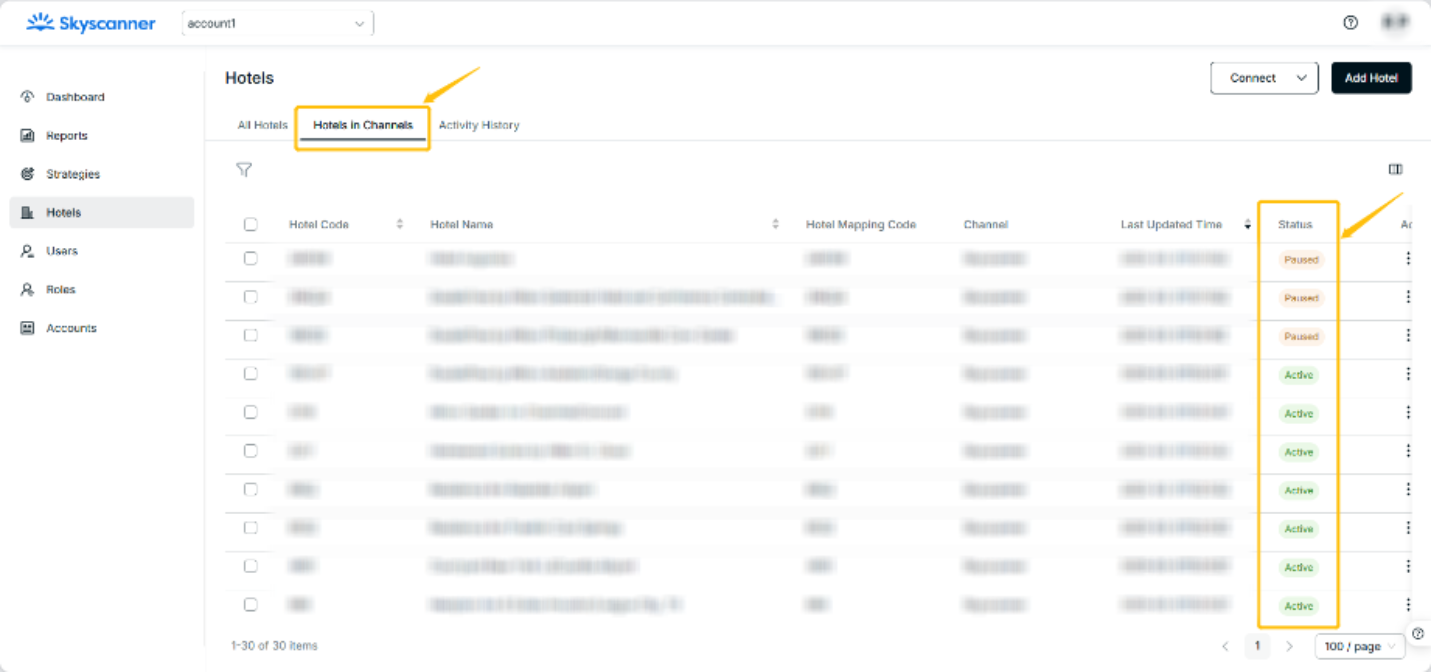
1-1 Strategy goal - Bid target/budget
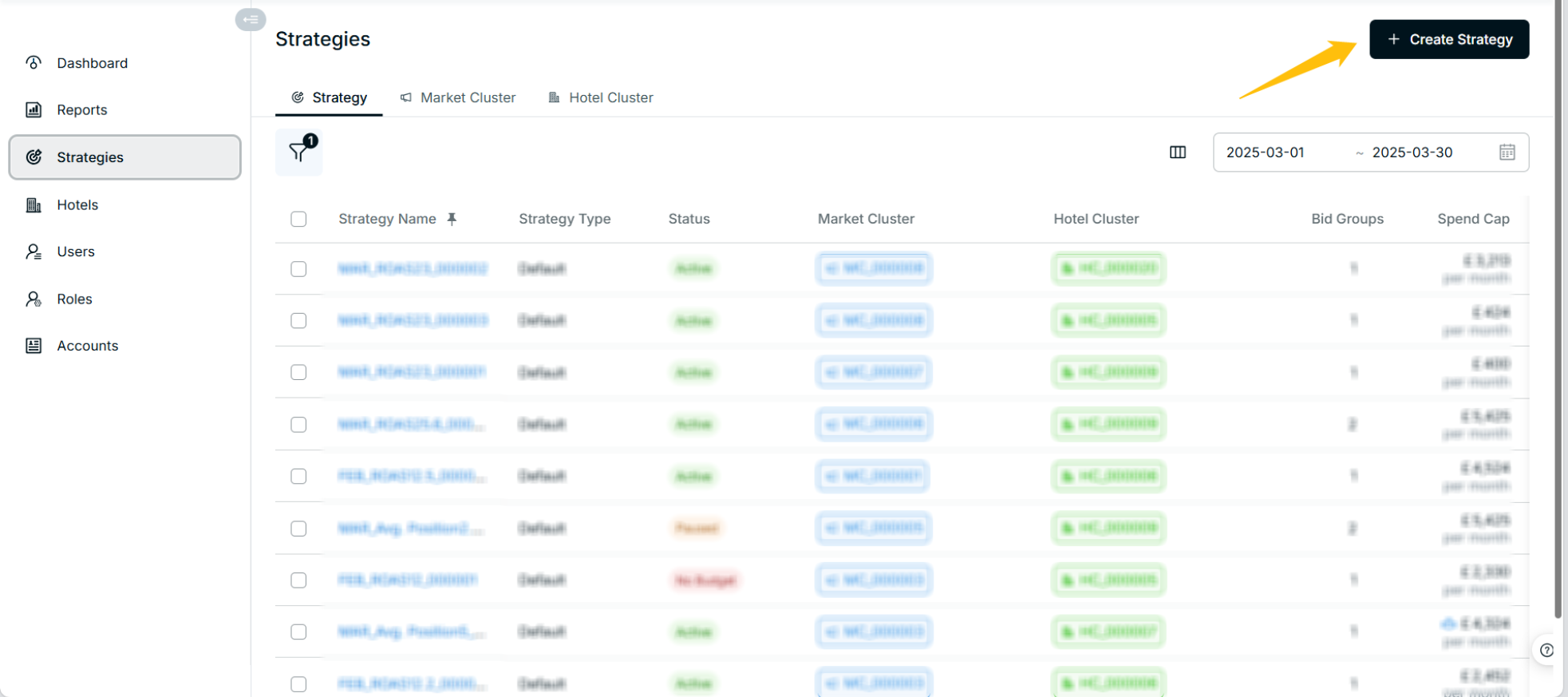
Step 1. Create Strategy
- Under “Strategies”, click Create Strategy to build the first strategy.
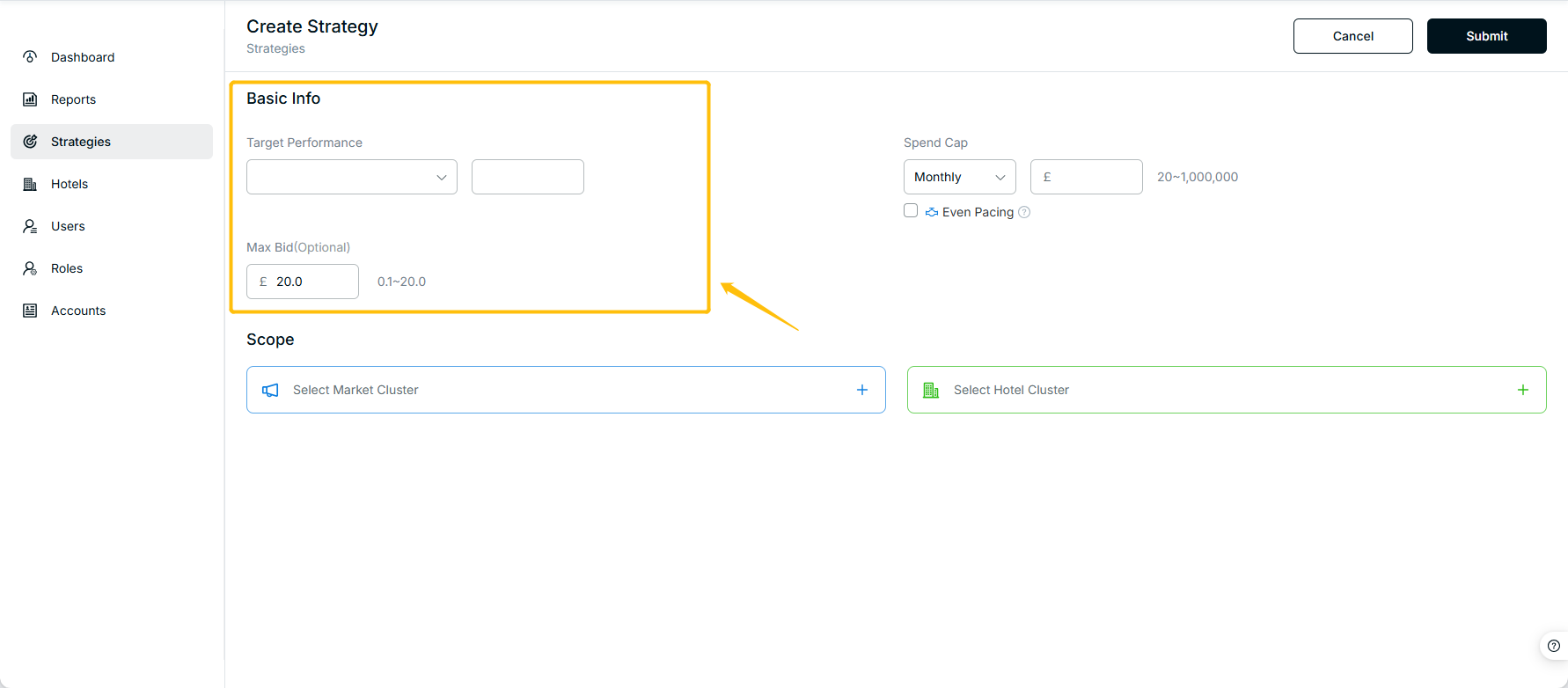
Step 2. Select Target Performance
- You can select the target performance
- Select from the drop-down menu
- ROAS
- - Value range: 0.1~100
- - Min Spend:
- You can select the target performance
a. Description: A minimum spend cap refers to a predetermined spend threshold or limit you can set for a month, which can be regarded as a learning spend or training allowance for the users. It’s an additional spend control function for you to set
b. E.g., When the MTD ROAS is above the target, the algorithm will increase the bid to reach the target ASAP. Whenever MTD ROAS is below target, the algorithm will cut off cost within the training allowance value you have set, to control the total spend.
c. Value Range: Optional, [20, Spend Cap]. If you set Spend Cap with a quarterly cadence, then the Min spend range will be [20, Spend Cap/3]
- - Average Position
- - Value range:1~12
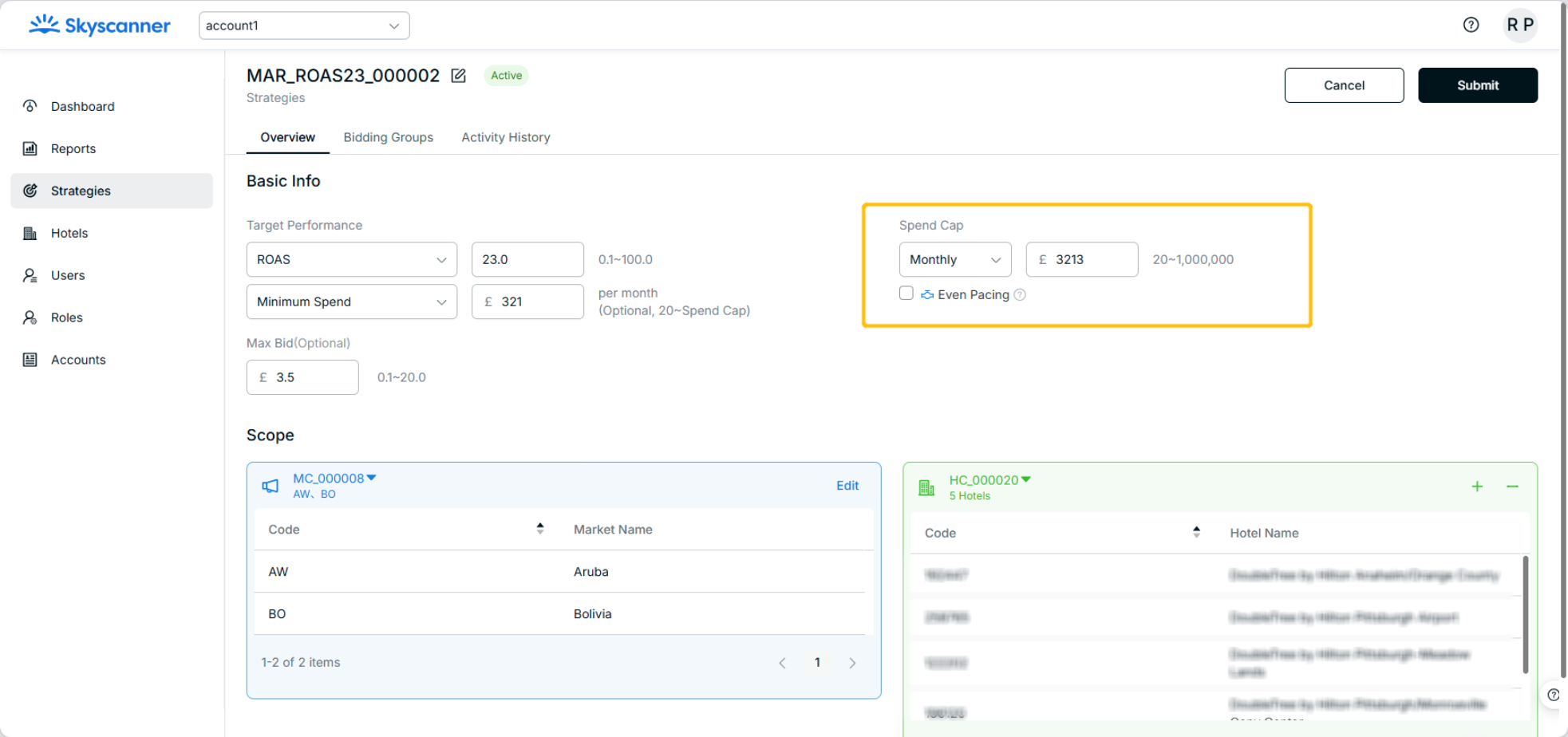
Step 3. Add a Spend Cap
- Add a Spend Cap for the strategy with a monthly or quarterly cadence.
- Select from the drop-down menu
- Monthly, Quarterly
- Value range: 20~1,000,000
- If a Spend Cap of 1M is too restrictive, please contact the DerbySoft team to have this raised.
- Add a Spend Cap for the strategy with a monthly or quarterly cadence.
 |  | |
1 | 2 | |
 | ||
3 |
1-2 Strategy scope - Add Market Cluster
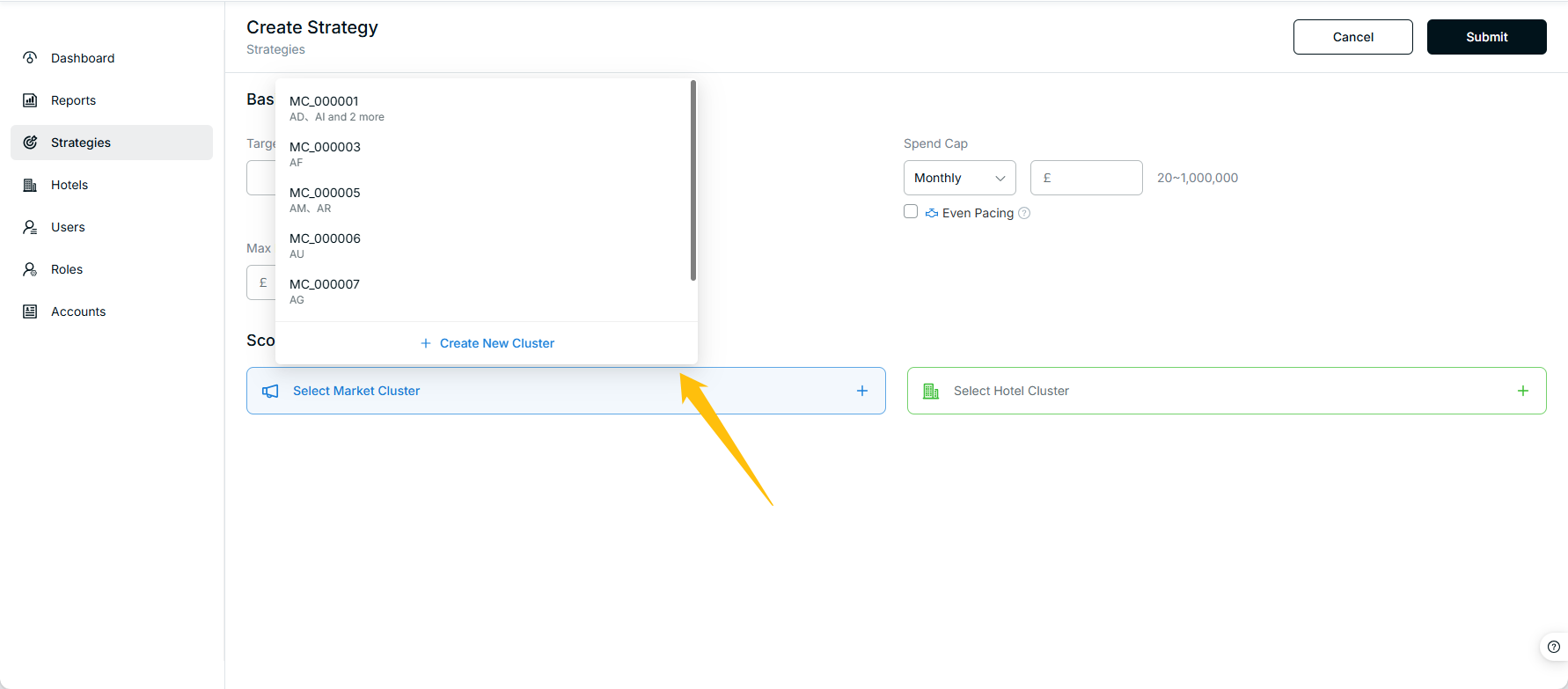
Step 1. Select the Required Bidding Market
- Click SelectMarket Cluster to select the required bidding market.
Step 2. Get Available Market Cluster
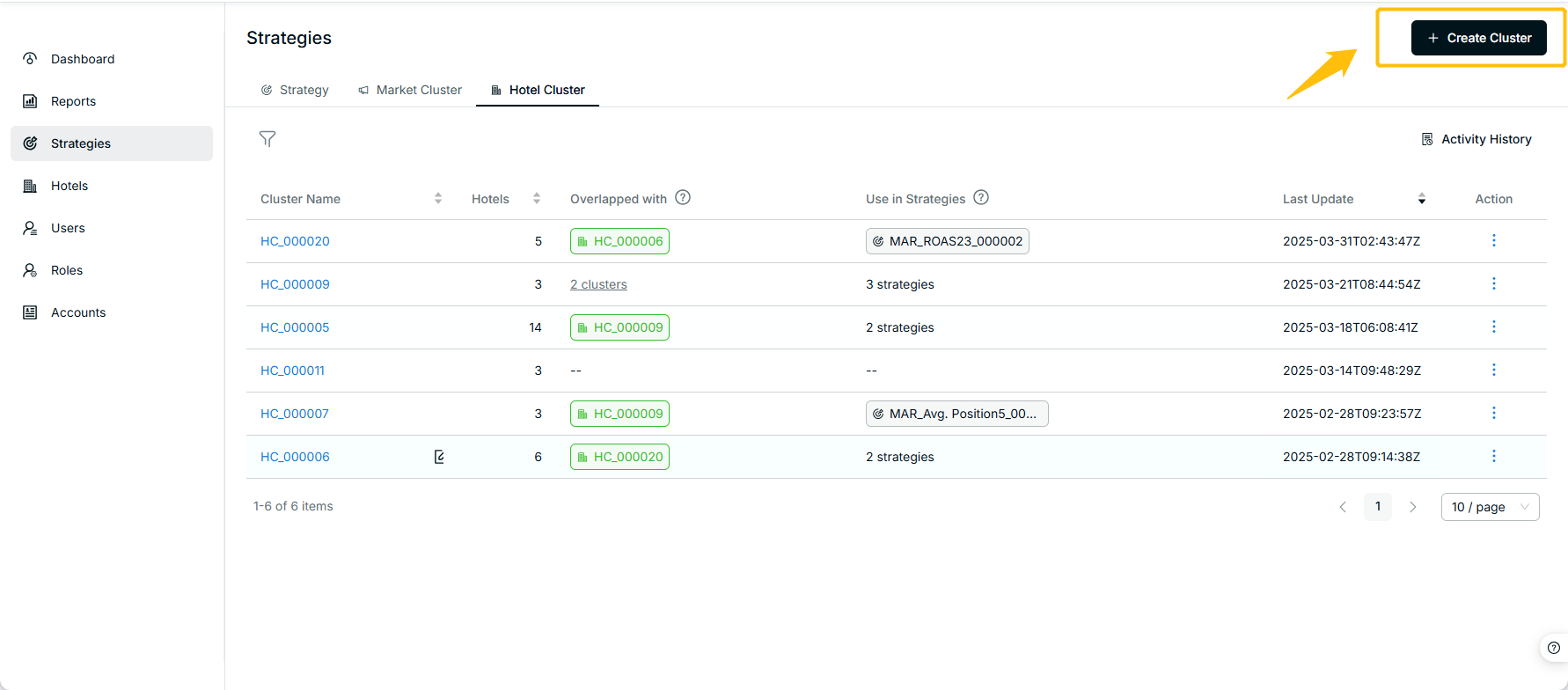
- Start by creating Market Clusters
- Select from the drop-down menu
- Choose one or more markets to create a Market Cluster
- Start by creating Market Clusters
a. Each Market Cluster or Hotel Cluster can be applied to a maximum of 10 strategies
b. Markets within a Market Cluster must not overlap; for example, you cannot create one Market Cluster with US, CN and another with US, CA
c. Each Hotel can be applied with a maximum of 10 Hotel Clusters
d. Users cannot create strategies with overlapping scopes (Hotel Cluster + Market Cluster) with existing strategies
 |  | |
1 | 2 |
1-3 Strategy scope - Add Hotel Cluster
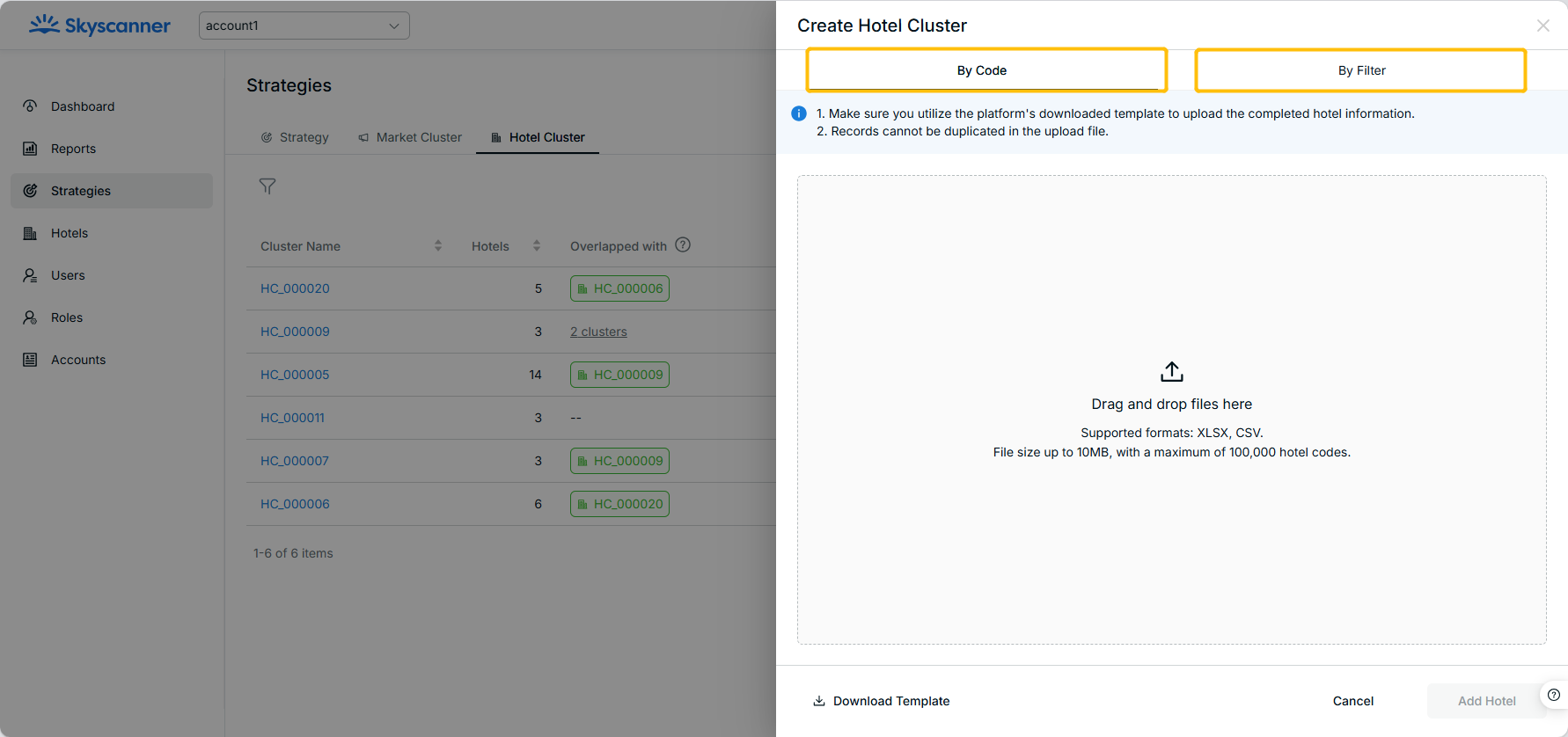
- Create Hotel Clustersby either submitting a file with Hotel Codes or using filters.
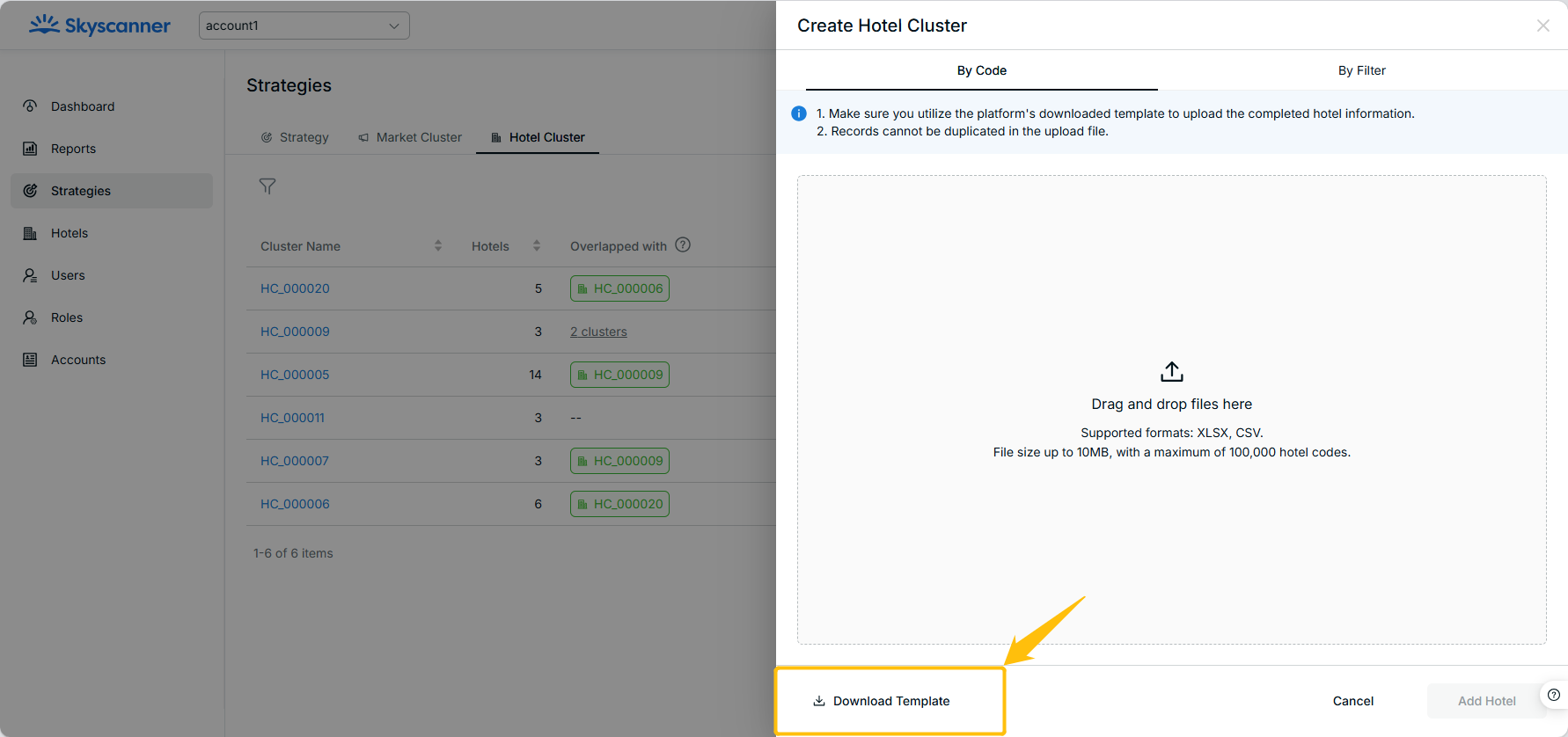
Option 1. Submit an Excel file with the Hotel Codes.
- Maximum number of codes that can be submitted at a time - 100.000 codes.
- Supported formats: XLSX, CSV.
- Users can also download a template with the right format.
Each Hotel can be applied with a maximum of 10 Hotel Clusters
Option 2. Choose Hotels using Filter
- Users can choose hotels by filters such as Hotel Brand, Hotel Name, City, Country, etc.
- Users can also click on the “Performance” button to add hotels based on their performance.
- Click Submit.
 |  | |
1 | 2 |
1-4 Strategy naming/list
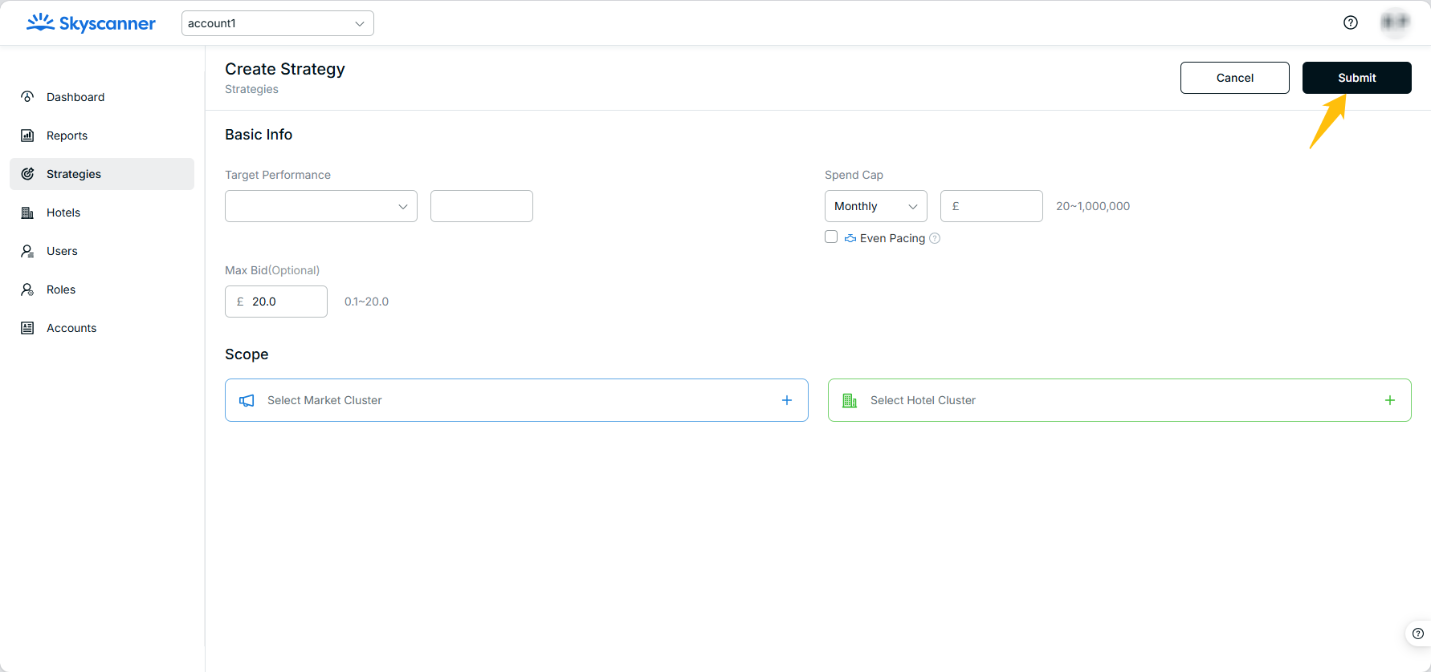
- After confirming all the target performance, market cluster, and hotel cluster settings, click Submit.
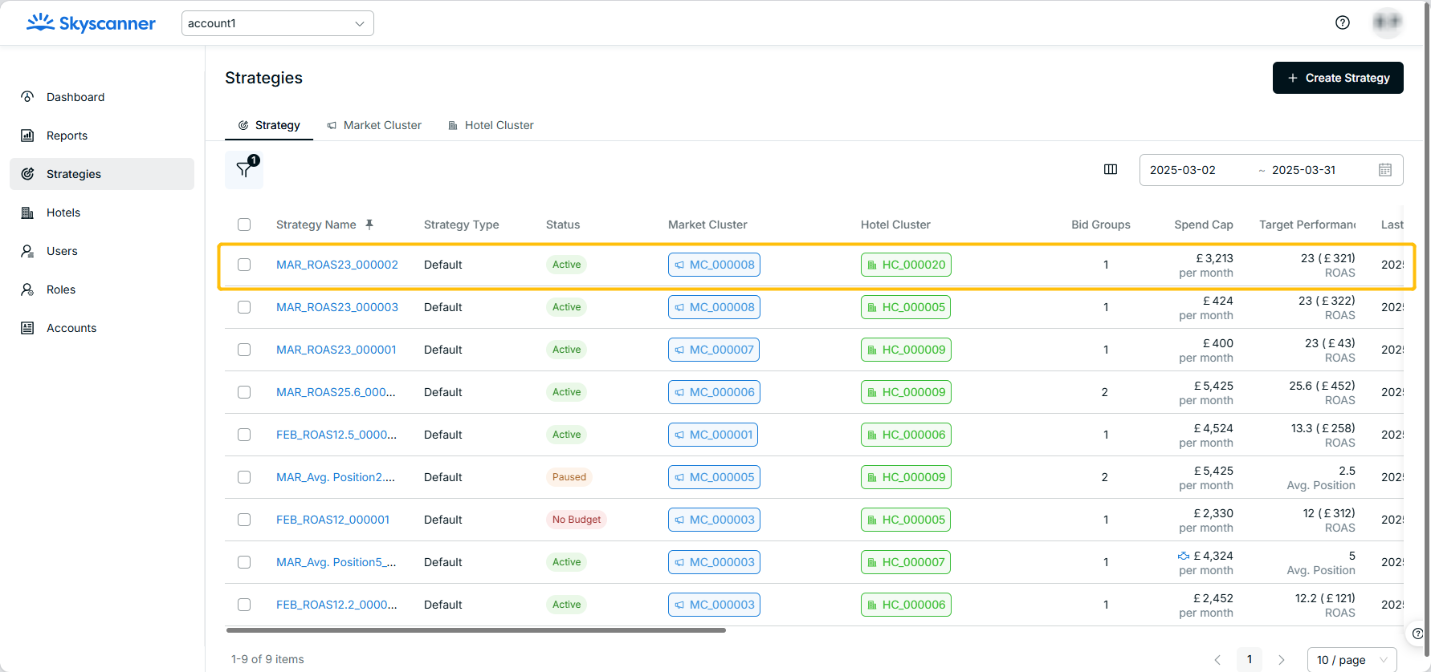
- Users can rename a strategy or use the one generated by the system, i.e., “Jun 13 Test”.
- Users can view the created strategy in the strategy list.
 |  | |
1 | 2 |
2. Update a Strategy
Step 1. Manage Strategy Status
- Users can enable, pause, and archive a strategy by selecting one or multiple strategies.
- Edit the Strategy and Click Submit.
The system will not save the updates if users leave the page or click Cancel
The system will perform an overlapping check if users edit a strategy
Step 2. Update Strategy Settings
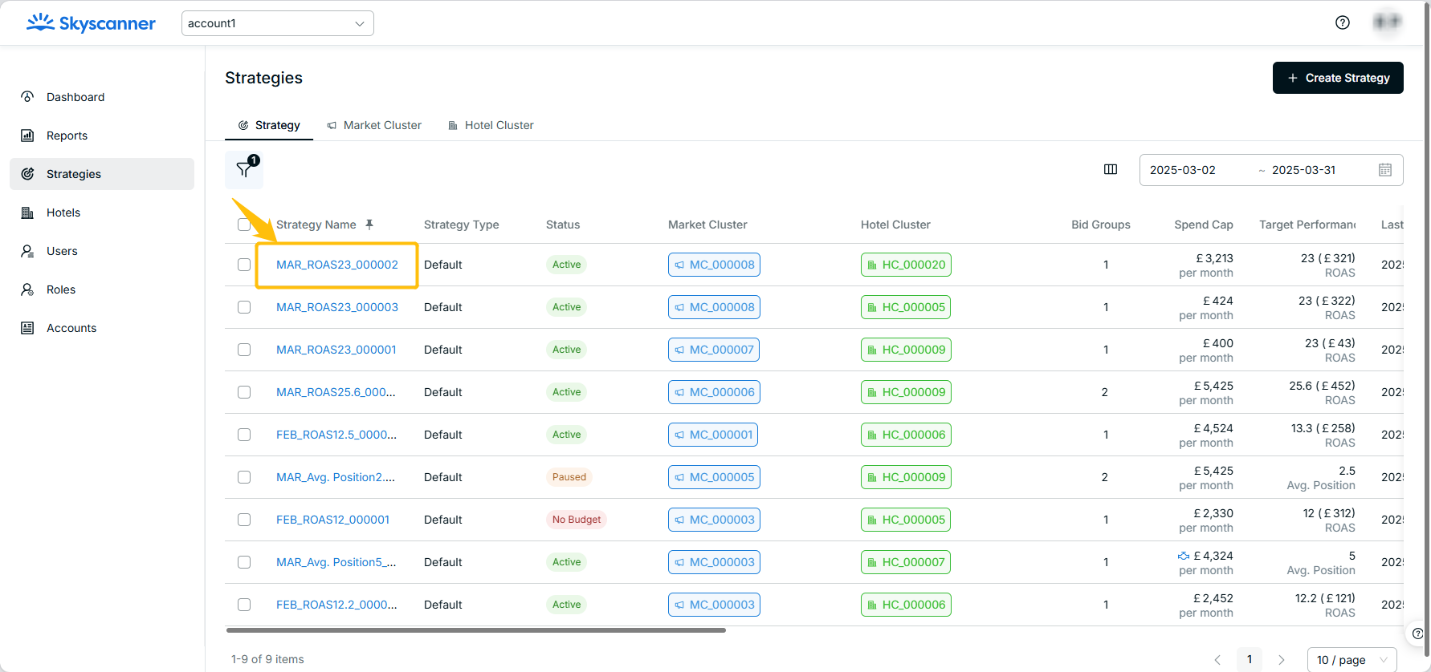
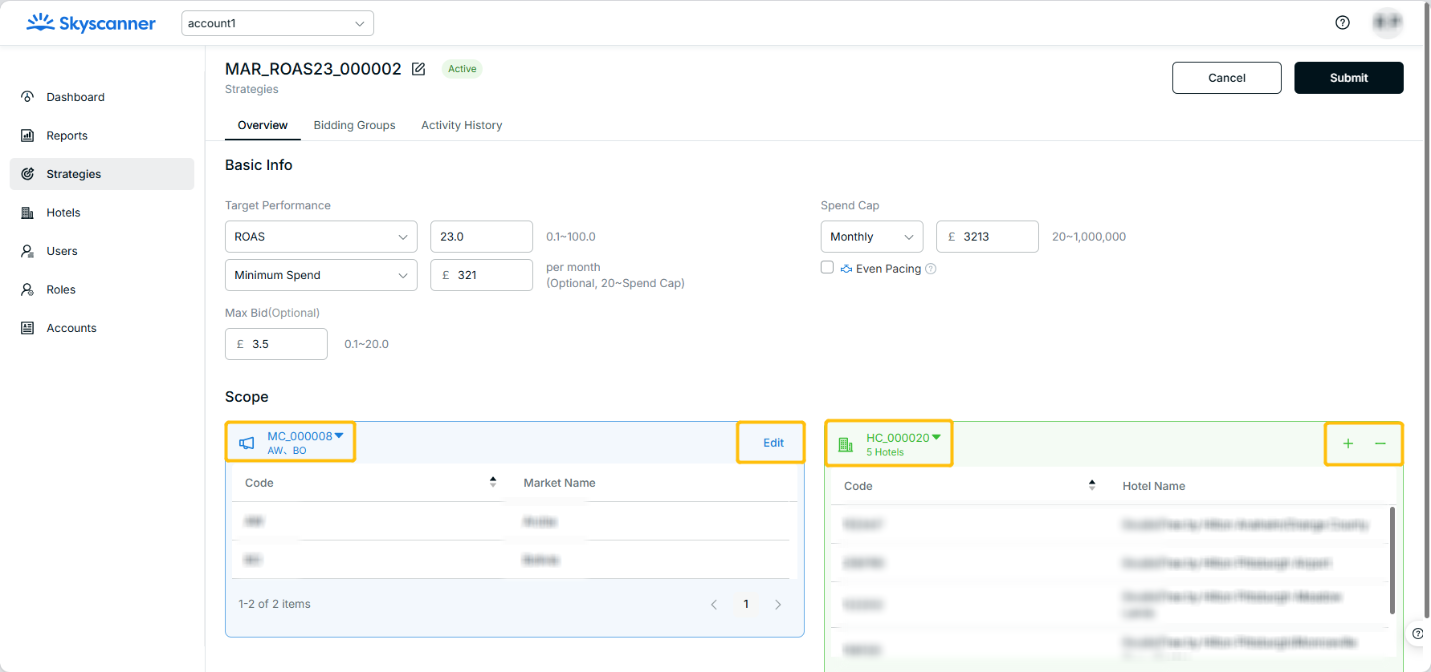
- You can click the strategy name to view the strategy details and update the strategy settings
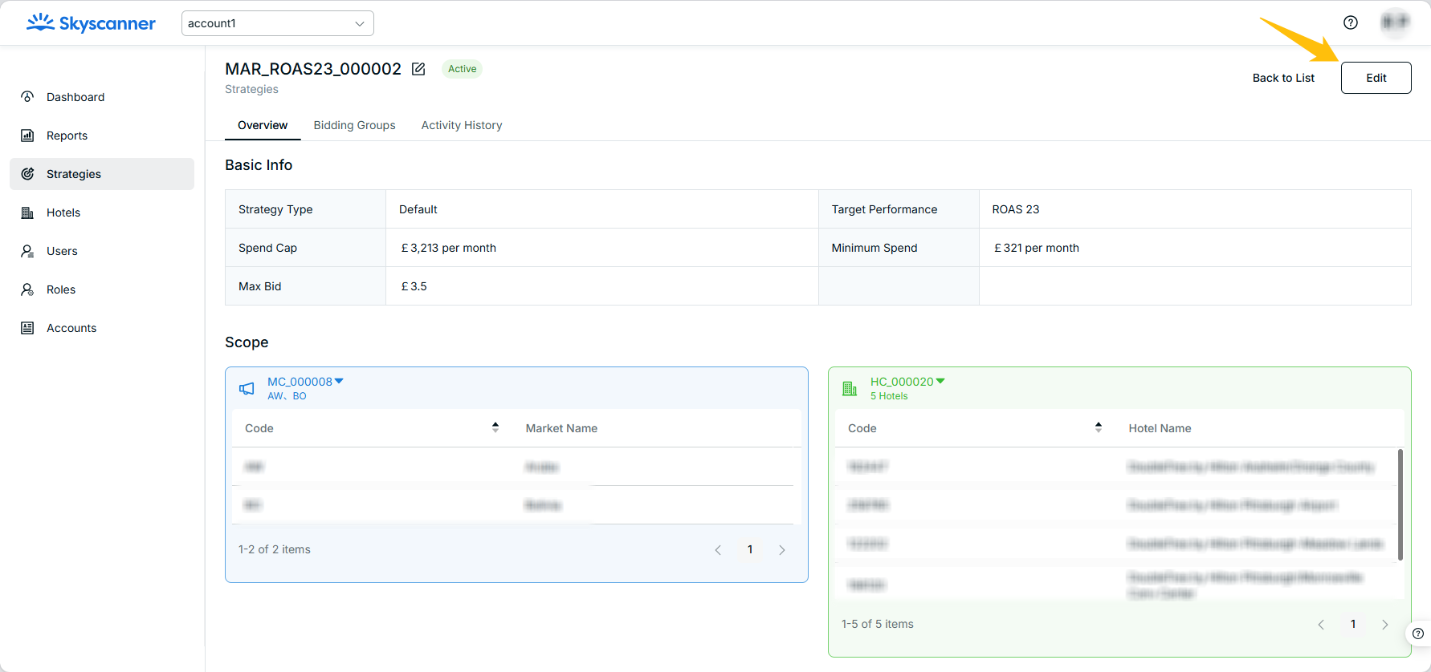
- Click the Edit button on the strategy detail page
- Once a strategy is live, you can
- Update the target performance
- Remove the hotels one by one or in bulk from the hotel cluster
- Remove the markets one by one or in bulk from the market cluster
- Add new markets to the existing market cluster by filters
- Add new hotels to the existing hotel cluster by filters
The hotel cluster used another strategy at the same time that cannot be changed. If you want to change the hotels of this current strategy, you will need to remove the entire cluster and add hotels manually.
 |  | |
1 | 2 | |
 | ||
3 |
The Bid group is the unit for the Algorithm to set up the base bid and a combination of a market cluster and a hotel cluster.
Bid groups can be split into sub-layers of at most 5 and can be viewed in a hierarchy/list.
The base bid of a sub-layer bid group will override the base bid of its parent layer bid group and be pushed to the channel in the end.
3. Check Overlapping
What is Overlapping?
The hotels and markets included in one strategy overlap with those of other strategies
For instance, as illustrated in the table below, [NOV_tROAS_001] overlaps with [NOV_tROAS_002] due to shared markets (US, CA) and the same hotel (DSHotel 1). However, [NOV_tROAS_003] does not overlap with other strategies since its markets do not intersect
| Strategy | Market Cluster | Markets | Hotel Cluster | Hotels |
|---|---|---|---|---|
NOV_tROAS_001 | MC_001 | US, CA | HC_001 | DSHotel 1 DSHotel 2 |
NOV_tROAS_002 | MC_001 | US, CA | HC_002 | DSHotel 1 |
NOV_tROAS_003 | MC_003 | AU, GB | HC_003 | DSHotel 1 DSHotel 2 |
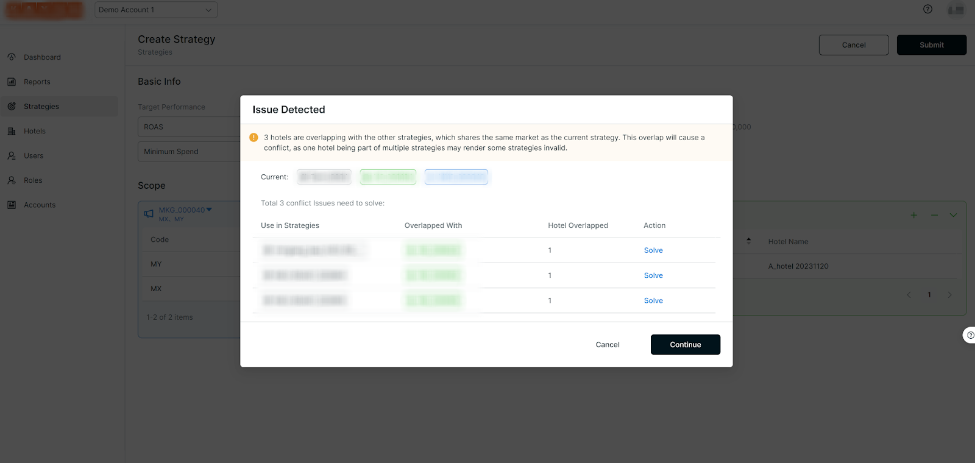
- When users create or edit an existing strategy. The system will check if the hotels and markets included in one strategy overlap with those of other strategies
- If no, the system will create or update the strategy
- If yes, the system will generate a notification listing the overlapping details
- Use in Strategies: Shows overlapping strategies
- Overlapped With: Indicates the hotel cluster names of the overlapping strategies. Users can visit the hotel cluster page to review cluster details
- Hotel Overlapped: Displays the number of overlapped hotels
- Action: Users can take necessary actions to address the issue
- Users can Exclude overlapping hotels from the current strategy
- For example, there is one hotel in [NOV_ROAS1_000004] that overlaps with the current strategy [Demo2024], users can choose to exclude this hotel from the current strategy [Demo2024]’s hotel cluster [HC_000104] without affecting [NOV_ROAS1_000004]
- Users can Edit the hotel clusters of the overlapping strategy [NOV_ROAS1_000004] instead of altering the current strategy [Demo2024]. This action enables users to navigate directly to the hotel cluster page
Each hotel cluster must contain at least one hotel. Users can edit existing hotel clusters but cannot exclude overlaps directly in this scenario.
 |  | |
1 | 2 |
Related User Guides
Did you find it helpful? Yes No
Send feedback