User Guide: Pre-defined Reports
Modified on: 2025-04-01 14:37
TABLE OF CONTENTS
- Introduction
- Functionality
- Views: We Provide Two Kinds of Report View
- Search: The Report Can be Searched by Field Name or Report Name
- Download: Download Data Should be the Data Filtered by the Date Selection
- Date Range: The Date Can be Selected to Display the Related Data on the Page
- Schedule: Pre-defined Reports Can be Scheduled to be Sent to Your Email
- Email Enable:
- Related User Guide
Introduction
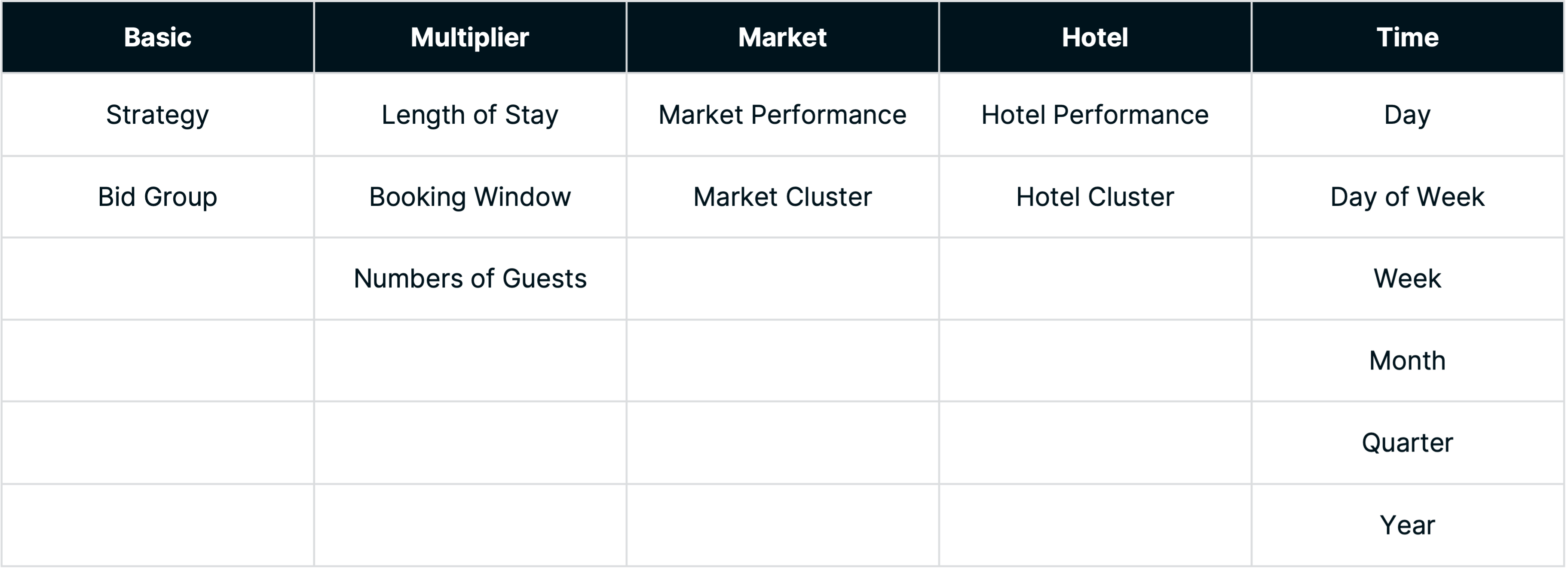
We provide 5 categories and 17 pre-defined reports to view the performance from different perspectives.
Report list
Functionality
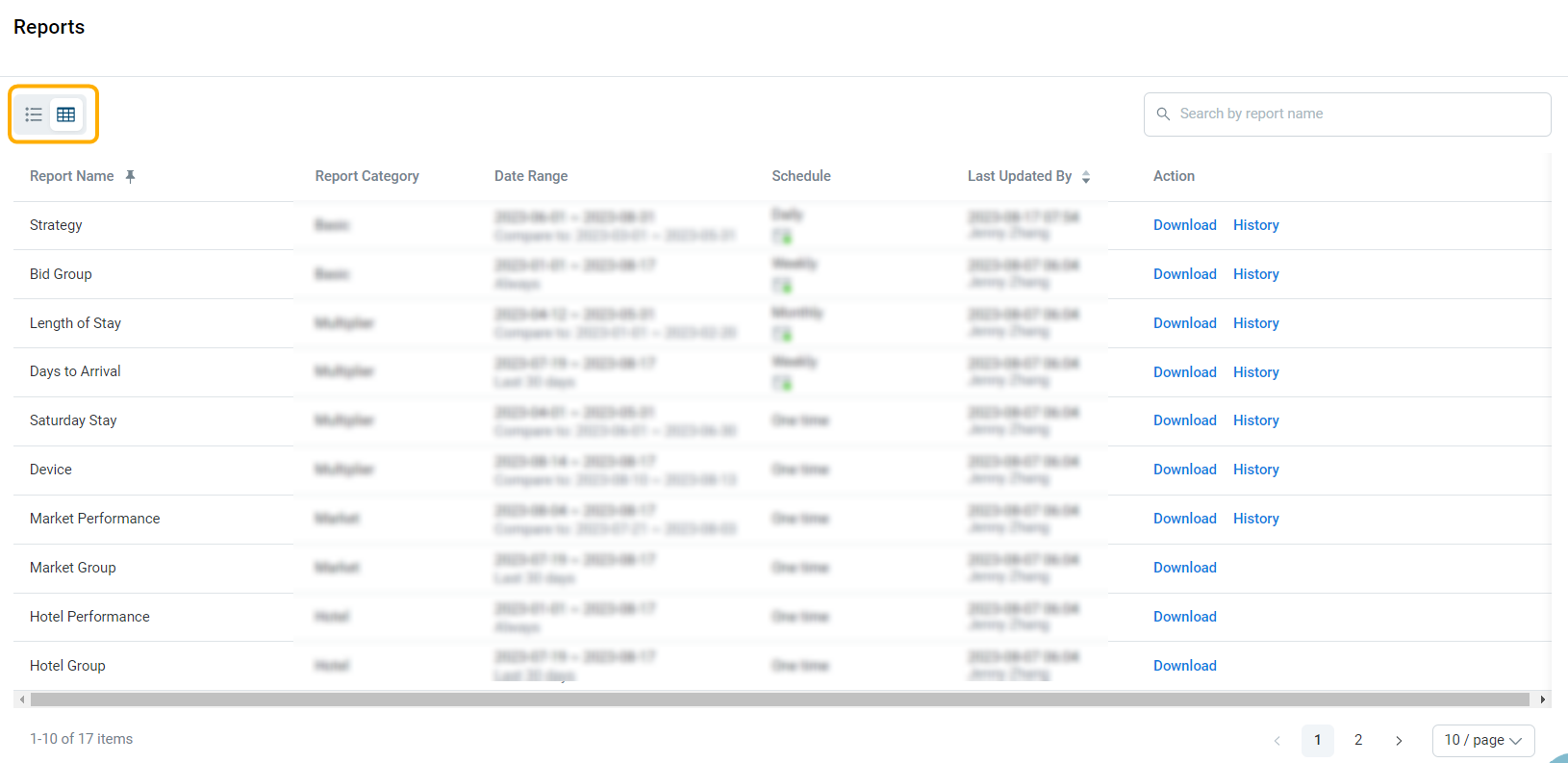
Views: We Provide Two Kinds of Report Views.
- Card view
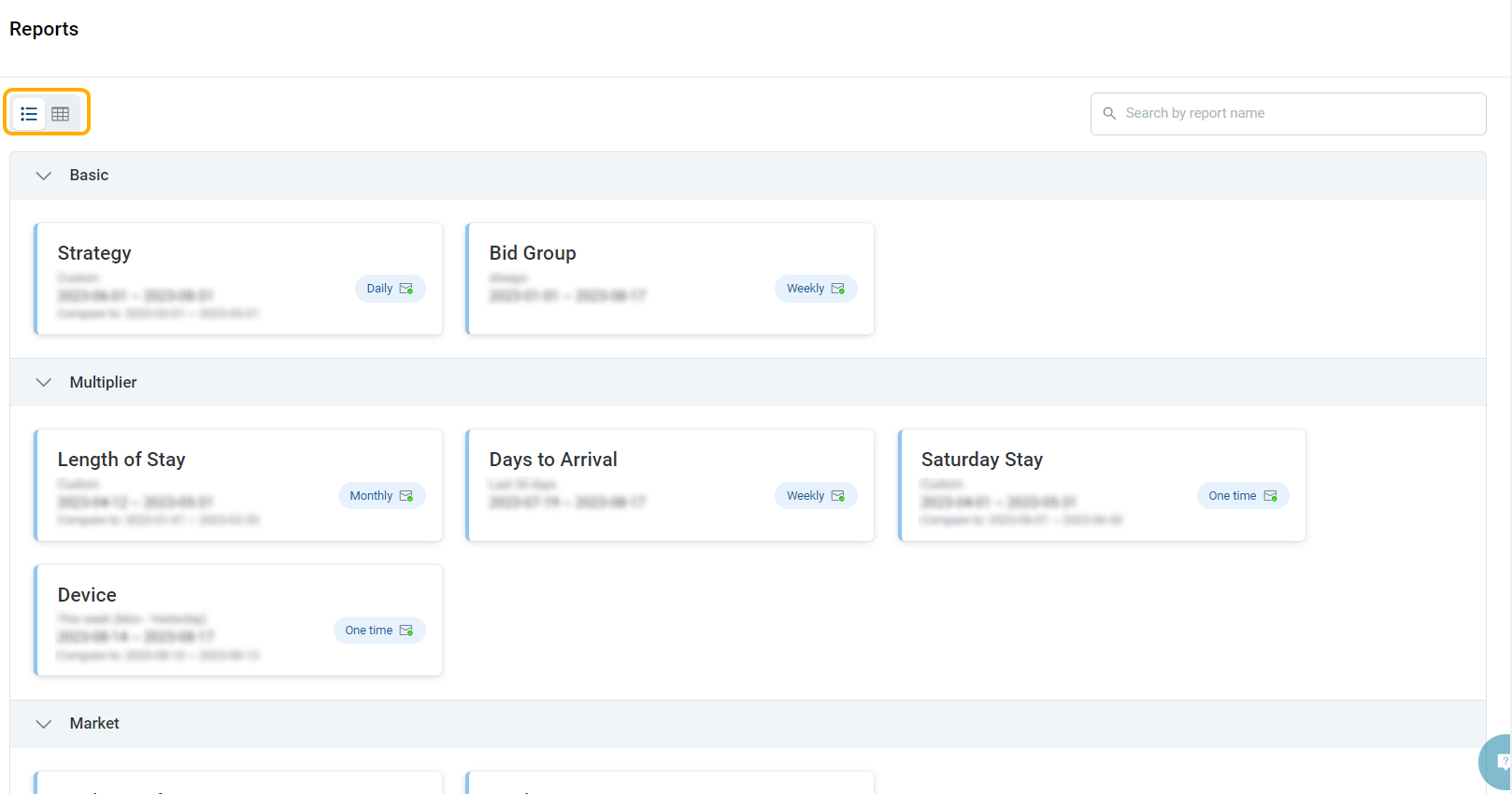
- List View
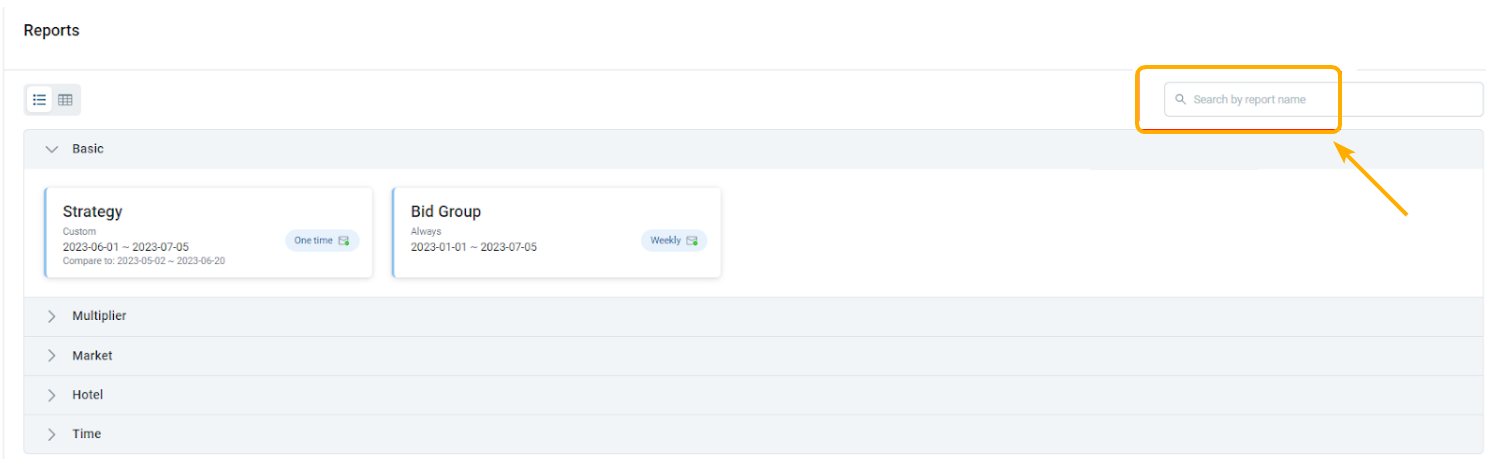
Search: The Report Can be Searched by Field Name or Report Name
Download: Download Data Should be the Data Filtered by the Date Selection
- Format: CSV
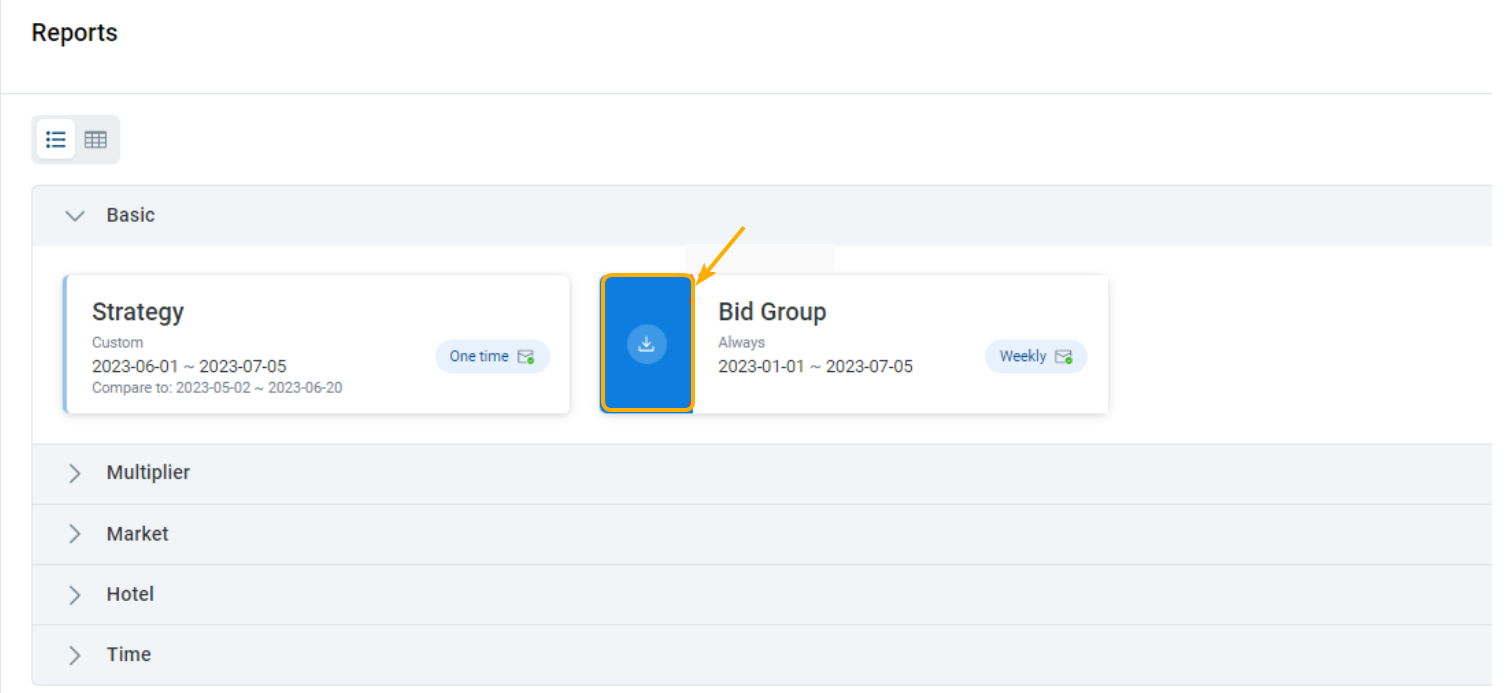
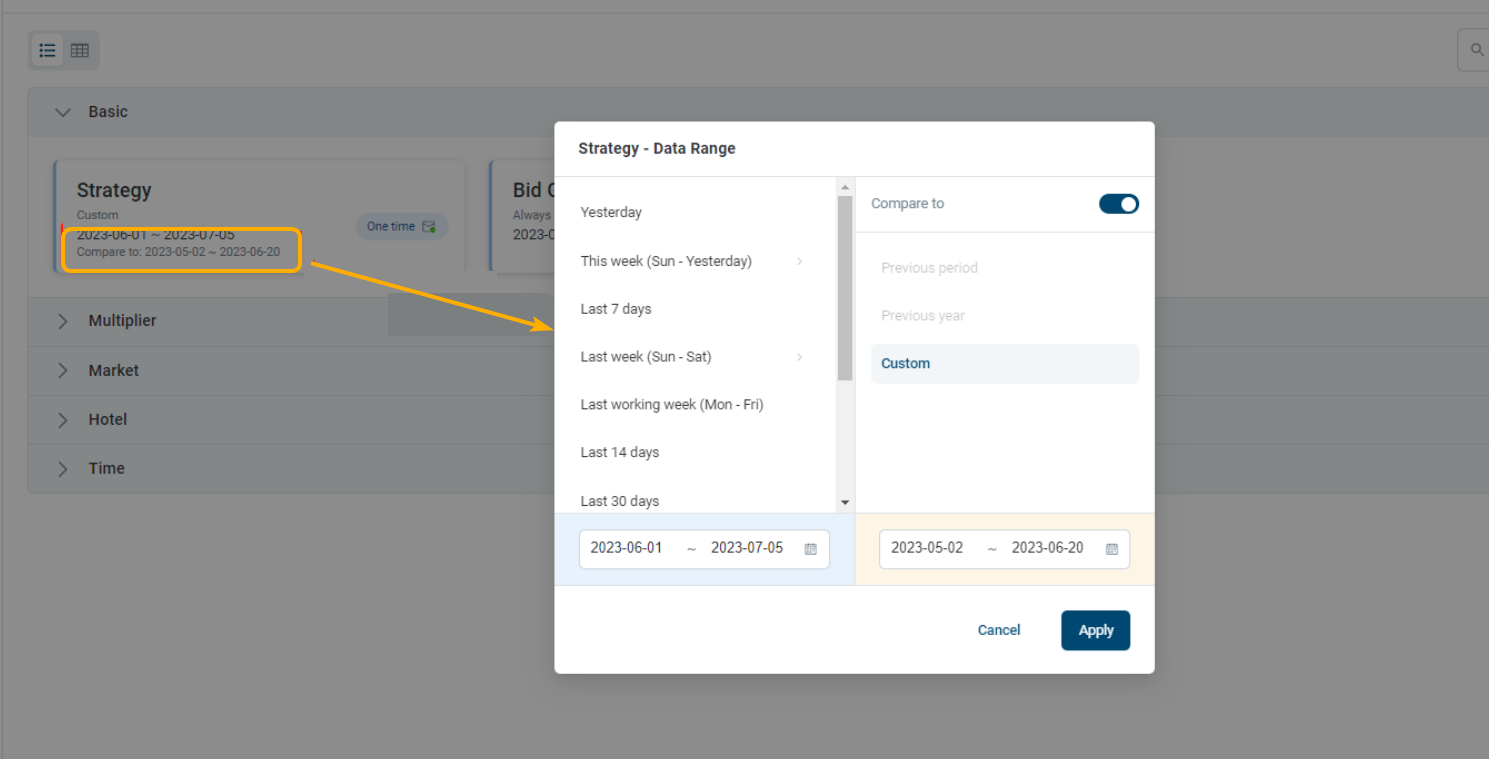
Date Range: The Date Can be Selected to Display the Related Data on the Page
- By default, all the pre-defined reports show the last 30 days' range
- Selectable date range: Yesterday, This week(Sun-Yesterday), This week (Mon-Yesterday), Last 7 days, Last Week(Sun-Sat), Last Week(Mon-Sun), Last Working Week (Mon-Fri), Last 14 days, This month, Last 30 days, Last month, Always
Notes: “Always” means the data generated from day 1 to yesterday
- Custom date set range for each report: [2023-06-01 ~ yesterday]
- Compare: Previous period, previous year, custom date set
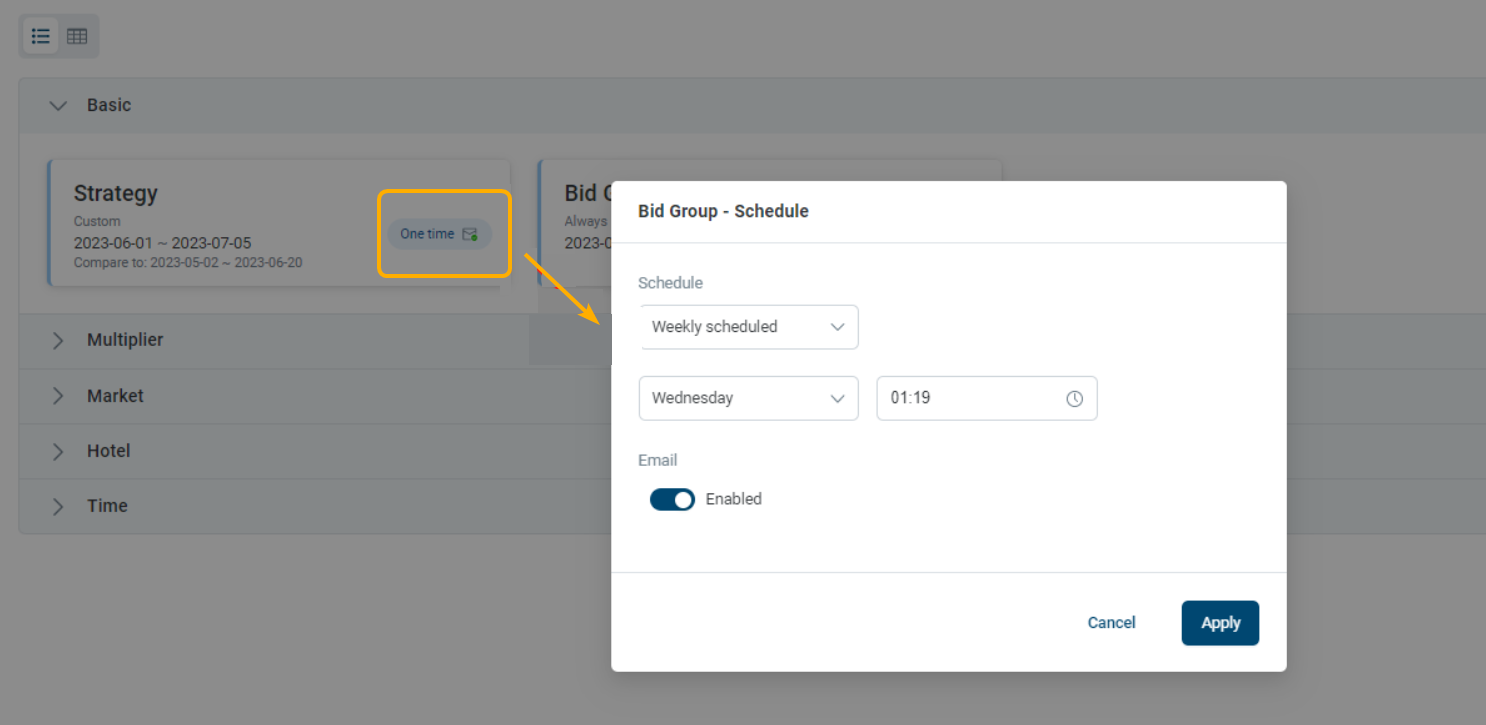
Schedule: Pre-defined Reports Can be Scheduled to be Sent to Your Email
- One time, the default setting
- Daily scheduled
- Weekly scheduled
- Monthly scheduled
- The maximum scheduled date of monthly is the 28th(Considering that Feb has only 28 days)
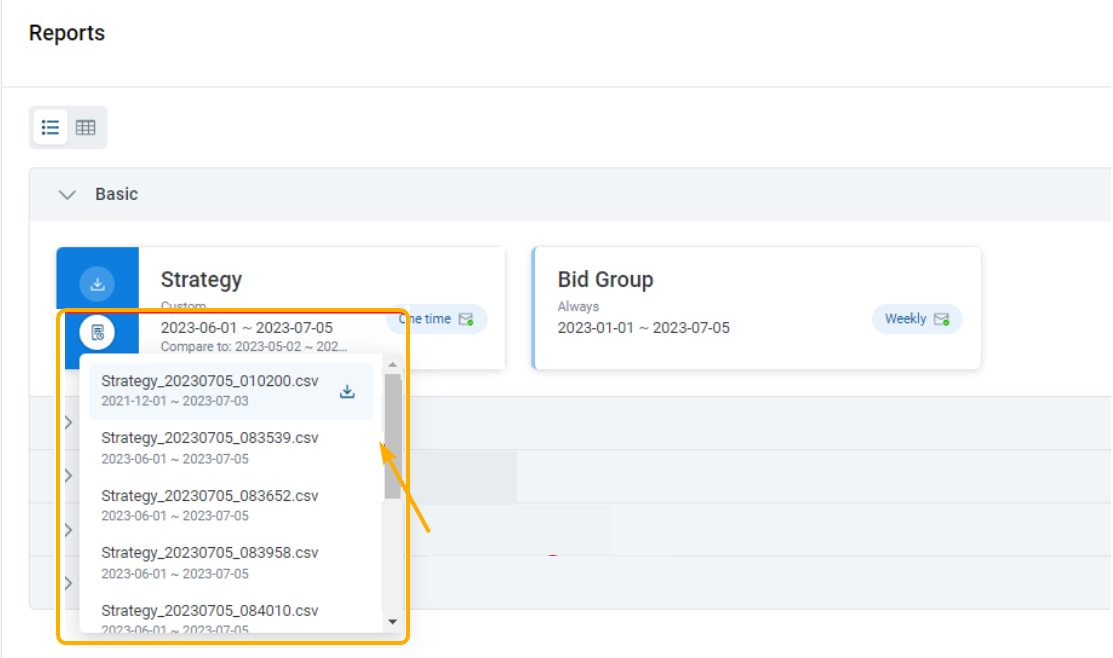
Email Enable:
- Email scheduled, the report will be sent to you by the schedule
- Email disabled, the report is stored in the system and you can download it from the history list
Related User Guides
Did you find it helpful? Yes No
Send feedbackSorry we couldn't be helpful. Help us improve this article with your feedback.